Using BoltReporter
Install the Windows BoltReporter client and connect it to one of your Bolt devices.
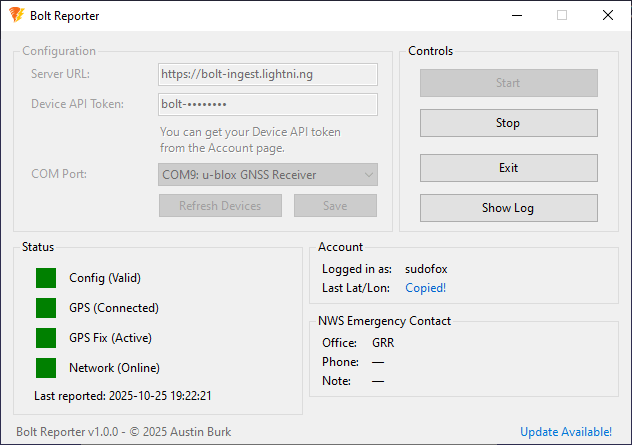
BoltReporter is Bolt's Windows tracking client. Use it when you want to send GPS updates from a Windows laptop or mini PC.
Prerequisites
- A Windows laptop or mini PC installed in the vehicle
- External GNSS receiver or another Windows-visible GPS source
- Reliable internet connection (cellular hotspot, in-vehicle modem, Starlink, etc)
- A Device API Token from your Bolt Account page
Get your Device API Token
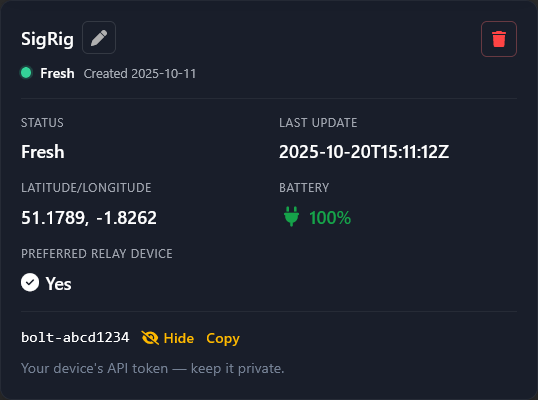
- Log into your My Devices page.
- Locate the device you created (e.g., “SigRig”).
- Click Reveal or Copy next to the token.
- Paste this into BoltReporter’s Device API Token field. Keep it private.
Windows installation
- Download the latest BoltReporter installer from this page.
- Run the installer and accept the default path.
- Open Bolt Reporter.
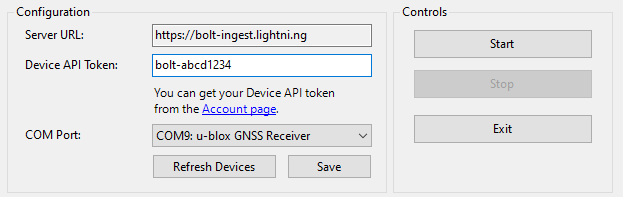
- In Configuration:
- Server URL: prefilled (
https://bolt-ingest.lightni.ng) and cannot be changed. - Device API Token: paste the token you copied.
- COM Port: select your GPS (e.g., “COM9: u-blox GNSS Receiver”). Use Refresh Devices if needed.
- Click Save.
- Server URL: prefilled (
- In Controls, click Start to begin streaming. Use Stop to pause and Exit to close.
Status panel
- Config: Green when the token and port are valid.
- GPS: Gray when idle, active when data is being read.
- GPS Fix: Indicates whether the receiver has a fix.
- Network: Yellow while connecting, changes once telemetry is accepted by Bolt.
- Last reported: Shows the time of the last successful transmission.
Log
The Log at the bottom shows initialization and any errors (e.g., “[11:01:06] Bolt Reporter initialized”).
Keep it healthy
Before heading out: verify your GPS is locking onto satellites, your hotspot has signal, and your laptop is charging. That way BoltReporter keeps sending without interruption.
Troubleshooting
- No GPS devices listed: Check USB connections, then press Refresh Devices. Verify Windows Device Manager sees the receiver.
- Token invalid: Double-check you copied the correct Device API Token from your Account page. Tokens are device-specific.
- GPS has no fix: Place the antenna somewhere with open sky view. Indoor placement or vehicle obstructions can block signals.
- Network stuck on Pending: Ensure your internet is active. If behind a firewall or corporate network, verify that
https://bolt-ingest.lightni.ngis allowed outbound. - No updates in Bolt: Look at the Log for error messages. Common causes: wrong token, wrong COM port, or GPS not locked.
Practical setup notes
Use stable power, keep the GPS antenna where it has a clear view of the sky, and label the port or cable if you swap hardware often.