
SpotterNetwork Relay Setup
Enable Bolt's SpotterNetwork relay, set the Application ID, and choose which device it should use.
The SpotterNetwork section on your Account page lets Bolt relay your position to SpotterNetwork while your devices are reporting to Bolt.
How the relay behaves
- The relay is only available when your device visibility is set to Public.
- You can enable or disable the relay without removing the saved Application ID.
- If you choose a Preferred Relay Device, Bolt will use that device when it is available.
- If Relay only from preferred device is off, Bolt can fall back to another reporting device.
- If Relay only from preferred device is on and that device is unavailable, no relay update is sent.
Exclusion zones still matter here. Points reported inside an exclusion zone are hidden from SpotterNetwork relay output.
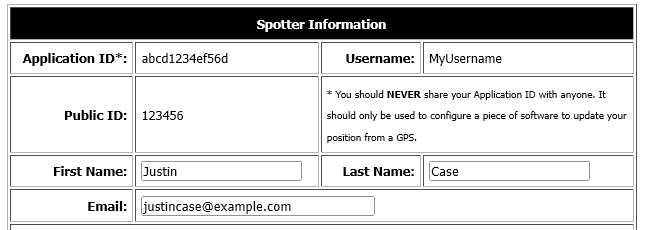
Find your SpotterNetwork Application ID
- Sign in at spotternetwork.org.
- Go directly to spotternetwork.org/account.
- Copy the value labeled Application ID.
Set it up in Bolt
- In Bolt, go to Account → SpotterNetwork.
- Turn on SpotterNetwork Relay Enabled if you want Bolt to relay while tracking.
- Paste the 13-character SpotterNetwork Application ID.
- Optionally choose a Preferred Relay Device.
- Optionally enable Relay only from preferred device.
- Click Save.
Choose which device SpotterNetwork sees
Use Preferred Relay Device if you want to pin relay output to one device. This is useful when you keep several devices on your account but only want one of them exposed to SpotterNetwork.
Public visibility required
If your visibility is not set to Public, the account page shows a warning and the relay stays disabled until you change that visibility setting.
Troubleshooting
- Save fails: Make sure the Application ID is exactly 13 hexadecimal characters.
- Relay stays disabled: Set your device visibility to Public.
- No updates appear: Confirm at least one eligible device is actually reporting to Bolt.
- Wrong device is relayed: Check the preferred-device setting and whether Relay only from preferred device is enabled.